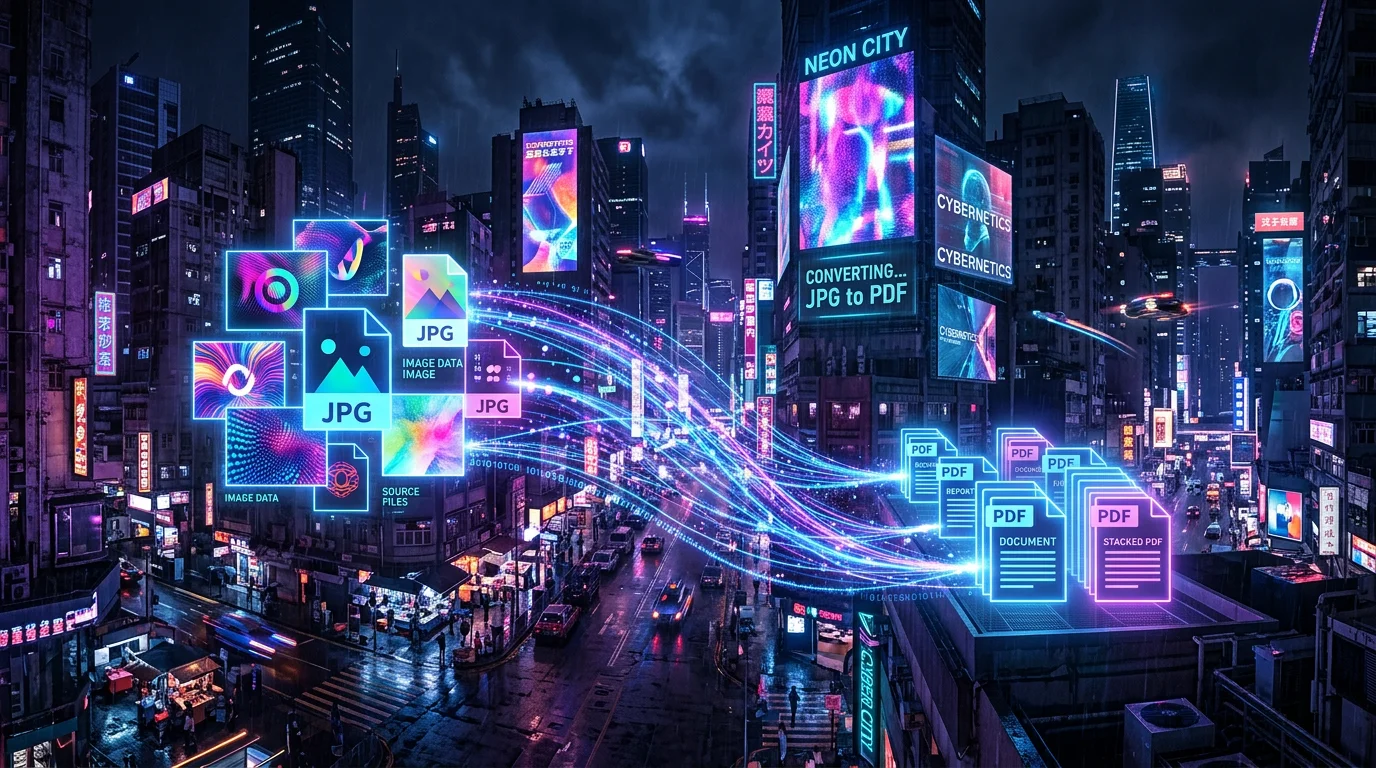
Creating a PDF from a set of images is a task that students, office workers, and freelancers face regularly. You might need to combine scans into a single document, put together a photo report, or prepare a portfolio. Let's see how to do it quickly and easily.
Why Create a PDF from Images
Sending a dozen separate images is inconvenient — the recipient might open them in the wrong order or lose some files. A PDF document solves these problems:
- All pages in a single file with a fixed order.
- The document looks the same on any device.
- PDFs are easy to print with proper margins and scaling.
- Convenient for archiving and attaching to emails.
Step-by-Step Instructions
- Open the JPG to PDF converter.
- Upload your images — you can select multiple files at once.
- Arrange the images in the desired order by dragging and dropping.
- Choose the page orientation: portrait or landscape.
- Click "Create PDF" and download the finished document.
Tips for Preparing Images
- Resolution. For a quality PDF, we recommend images with a resolution of at least 200 DPI. Photos from a phone camera usually work well.
- Orientation. If some scans are horizontal and others vertical, rotate them before converting so the document looks neat.
- Order. Name your files sequentially (001.jpg, 002.jpg) — this makes it easier to manage the order.
- Format. In addition to JPG, PNG and WebP are also supported. For photos and scans, JPG is the best choice in terms of quality-to-size ratio.
Additional Operations
After creating your PDF, you can merge it with other documents or perform the reverse operation — convert the PDF back to images. All tools work right in your browser without sending files to a server.
Create a PDF from images right now using our free JPG to PDF converter.