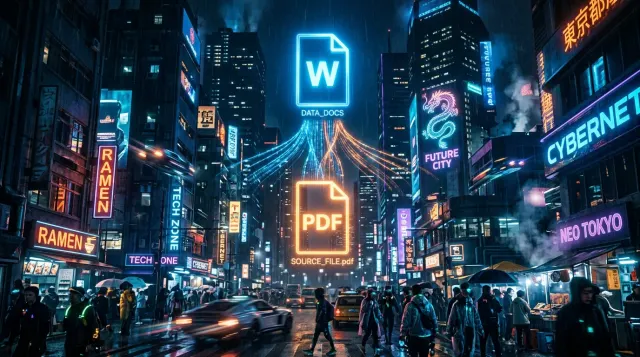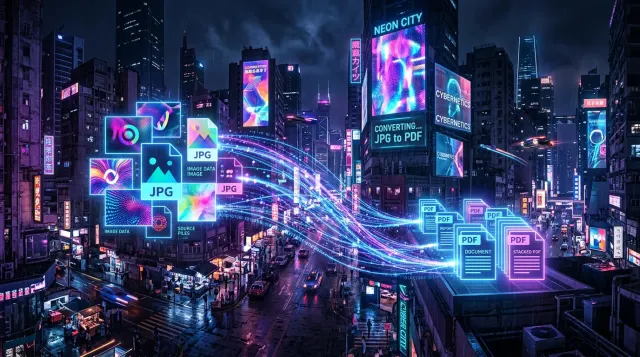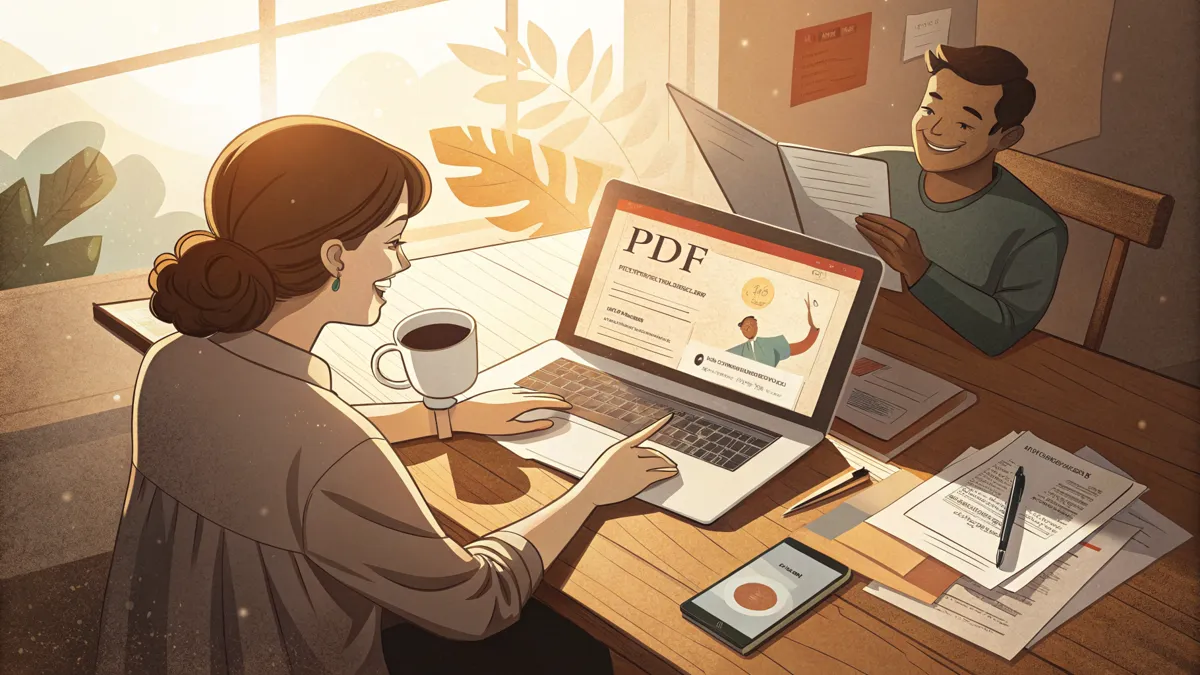
Converting PDF to images is one of the most common document operations. Images are easier to insert into presentations, send via messengers, and post on social media. Let's look at how to quickly turn a PDF into a set of JPG files.
Why Convert PDF to JPG
The PDF format is great for storing and printing documents, but it's not always convenient for viewing and sharing. JPG images open on any device without special software and can be inserted into an email, slide, or social media post. Typical use cases:
- Preparing slides from a PDF presentation for publishing.
- Sending a document page via a messenger app.
- Creating a document preview for a website or catalog.
- Inserting PDF pages into Word, Google Docs, or Figma.
Quality and File Size
When converting, it's important to balance image quality and file size. Our PDF to JPG converter lets you adjust:
- Scale (DPI). The higher the value, the more detailed the image. 150 DPI is sufficient for screens; 300 DPI is recommended for printing.
- JPEG quality. A value from 60 to 100. For text documents, we recommend 85–90 — an excellent balance of sharpness and file size.
For graphical documents (blueprints, diagrams), use maximum quality to preserve details.
How to Convert
- Open the PDF to JPG converter.
- Upload your PDF file.
- Adjust quality and scale if needed.
- Click "Convert" and download the images.
Each PDF page becomes a separate JPG file. Processing is done in your browser — documents never leave your computer.
Reverse Conversion and Related Tasks
If you need to do the opposite — create a PDF from images — use our JPG to PDF converter. And for recognizing text on scanned images, check out our OCR tool, which supports both Russian and English.
Try our free PDF to JPG conversion right now — no registration, no limits.