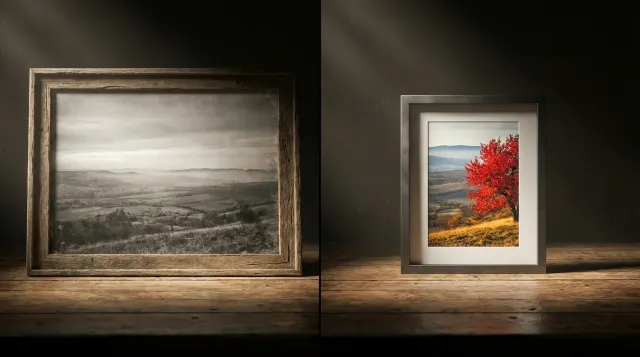
Color replacement in images is one of the most common tasks in graphic processing. Designers change product colors for catalogs, marketers adapt visuals to match brand guidelines, and photographers adjust tones for artistic effect. In this article, we'll explore how color replacement works, what algorithms are used, and how to get the best results.
How Color Replacement Works
At its core, color replacement compares each pixel in the image to a target color. The algorithm iterates through every pixel, calculates the "distance" between the pixel's color and the selected color, and if that distance is within the specified tolerance threshold, the pixel is recolored to the new color.
Color distance can be calculated in different ways. The simplest method is Euclidean distance in RGB space:
d = sqrt((R1-R2)² + (G1-G2)² + (B1-B2)²)
The smaller the value of d, the closer the colors are to each other. The tolerance threshold determines the maximum distance considered "similar enough." A low threshold replaces only exact matches; a high one captures a wide range of shades.
Color Spaces: RGB and HSL
The color space significantly affects replacement accuracy. In RGB, a color is described by three channels: red, green, and blue. This is convenient for computers but not always intuitive for humans — two visually similar shades can have vastly different RGB values.
The HSL (Hue, Saturation, Lightness) space is closer to human perception. Here, color is separated into hue (position on the color wheel), saturation, and lightness. Color replacement in HSL often yields more predictable results because you can change only the hue while preserving the saturation and lightness of the original pixel. This helps maintain the object's texture and volume.
Our Color Picker tool can help you choose the right color — it displays values in RGB, HSL, HEX, and other formats.
Color Replacement Use Cases
Color replacement is used in a wide variety of scenarios:
- Product photography. A single product needs to be shown in multiple color variants. Instead of separate photo shoots, you can photograph one version and replace the color programmatically.
- Design mockups. When developing a brand identity, a designer can quickly try different color palettes on the same mockup.
- Branding. Adapting graphic materials to a new brand color scheme — logos, banners, icons.
- Artistic editing. Changing the color of skies, foliage, or clothing to create a specific mood in a photograph.
Comparison with Photoshop
In Adobe Photoshop, color replacement is implemented through the Replace Color command (Image → Adjustments → Replace Color). The user selects a color with the eyedropper, adjusts the Fuzziness parameter (analogous to the tolerance threshold), and sets the new shade using Hue/Saturation/Lightness sliders.
This tool is powerful but requires an installed copy of Photoshop and the skills to use it. Online tools solve the same problem faster and more accessibly: upload an image, specify the source and target colors, adjust the threshold — and the result is ready in seconds. Try our color replacement tool right in your browser.
Tips for Better Results
To make color replacement look natural, follow these recommendations:
- Solid background. If you need to replace the color of an object, it's best to work with an image on a contrasting solid background — this helps the algorithm isolate the target area more accurately.
- High contrast. The more the target color differs from the other colors in the image, the cleaner the result will be.
- Adjust the threshold gradually. Start with a small tolerance value and increase it until you've captured all the necessary pixels. Too high a threshold will affect unwanted areas.
- Account for shadows and highlights. Shadows and highlights on an object are the same color but with different lightness. An HSL-based algorithm handles them better than pure RGB.
- Use a high-quality source image. JPEG artifacts create "noise" around color boundaries, leading to jagged replacement edges. Whenever possible, use PNG or images with minimal compression.
Conclusion
Color replacement is a technically simple operation that requires care. Understanding how color distance works and choosing the right color space will help you achieve professional results without complex graphic editors. Use our online color replacement tool to recolor objects in your images in just a few clicks.