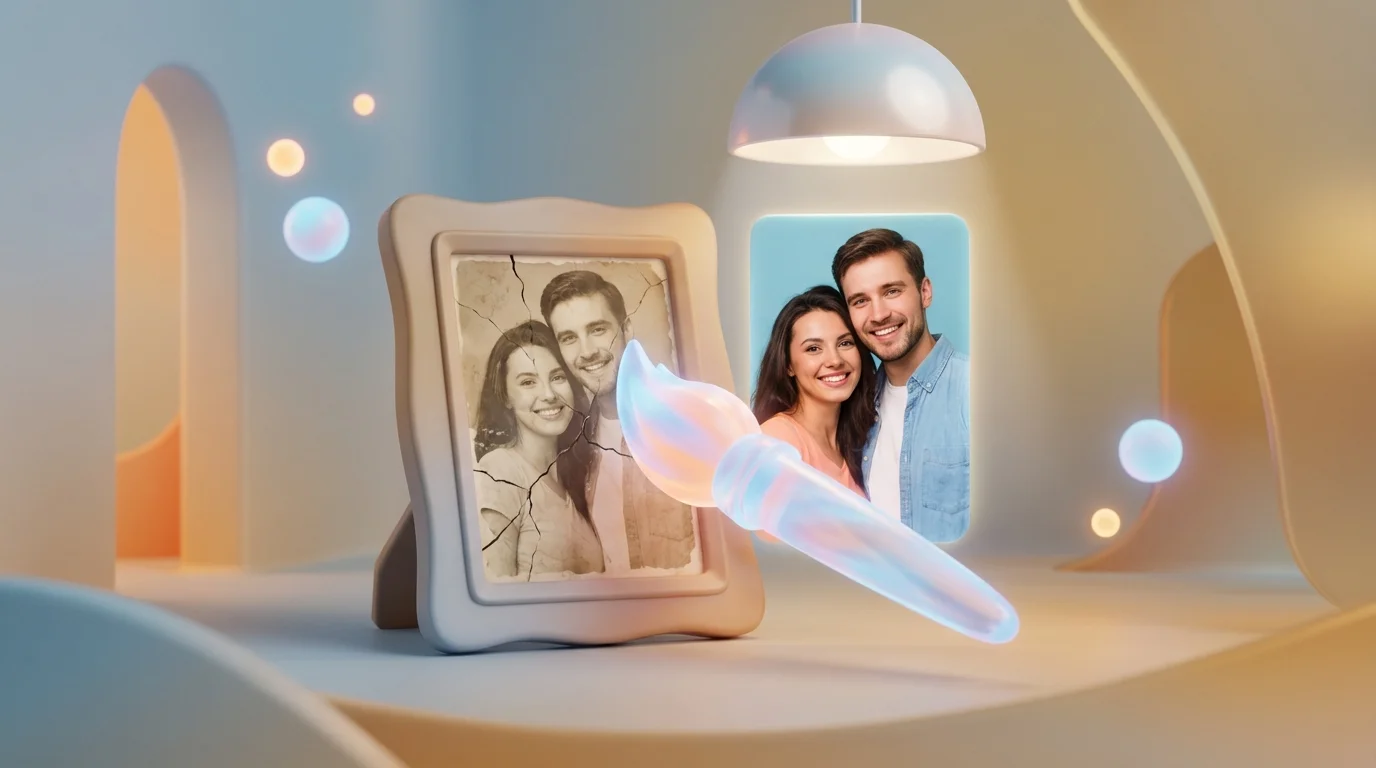
Old photographs deteriorate over time: scratches appear, faces become blurry, noise accumulates. Previously, restoration required hours in Photoshop or a visit to a professional retoucher. The GFPGAN neural network changes the game: enhance old photo quality in 5–15 seconds, for free, online.
What is AI Photo Restoration
AI photo restoration automatically improves image quality using neural networks. Unlike classic filters (sharpening, noise reduction), the neural network understands image content and restores details based on training on millions of images.
For example, if a face on an old photo is damaged, the neural network "knows" how a nose, eyes, and mouth should look, and reconstructs the lost details.
How GFPGAN Works
GFPGAN (Generative Facial Prior GAN) is a neural network from Tencent ARC specializing in photo restoration. The key feature is using a "generative prior": pre-trained knowledge about human facial structure.
- Degradation encoder — analyzes damage type and severity (noise, blur, scratches, JPEG artifacts)
- Generative prior — contains knowledge about undamaged faces (trained on StyleGAN2)
- Restoration decoder — combines encoder and prior information to generate the restored image
What Can Be Restored
- Scratches and cracks — small to medium scratches are fully removed, deep ones partially
- Noise and grain — effective on old film photos with high ISO
- Blur — restores sharpness, especially on faces
- JPEG artifacts — removes blockiness from repeated compression
- Damaged faces — the main specialization: restores eyes, nose, mouth, skin texture
- Fading — restores contrast and tonal range
Step-by-Step Guide
- Scan the photo — use a scanner at 300–600 DPI. Higher DPI means more detail for the neural network.
- Upload to UseToolz — open photo restoration, drag and drop your file (JPG, PNG, WebP up to 5 MB).
- Choose scale — 1x (enhancement only) or 2x (upscaling + enhancement). 2x recommended for small photos.
- Click "Restore" — processing takes 5–15 seconds.
- Evaluate the result — the Before/After slider shows the difference.
- Download — PNG for maximum quality, JPEG for compactness.
Tips for Best Results
- Scan properly — 300 DPI minimum, clean scanner glass, save as TIFF or PNG (not JPEG)
- Processing order — restoration first (remove damage), then colorization (for B&W photos), then upscaling
- Use 2x scale — for small photos under 500x500 px, this simultaneously enlarges and enhances
Try photo restoration online — free, no signup. Also: photo colorization, AI upscaler, background removal.